Google Search Console API
Bulk URL inspection tool
Search Console inspects one URL at a time. GSCTool runs the same URL Inspection API over your whole list — up to 1,000 URLs a day — and hands back index status, the canonical Google actually chose, the last crawl date and the robots state, ready to export.
- Daily volume
- Up to 1,000 URLs
- Data returned
- Coverage, canonical, crawl date, robots
- Needs
- Service-account JSON key
- Output
- Sortable table + CSV export
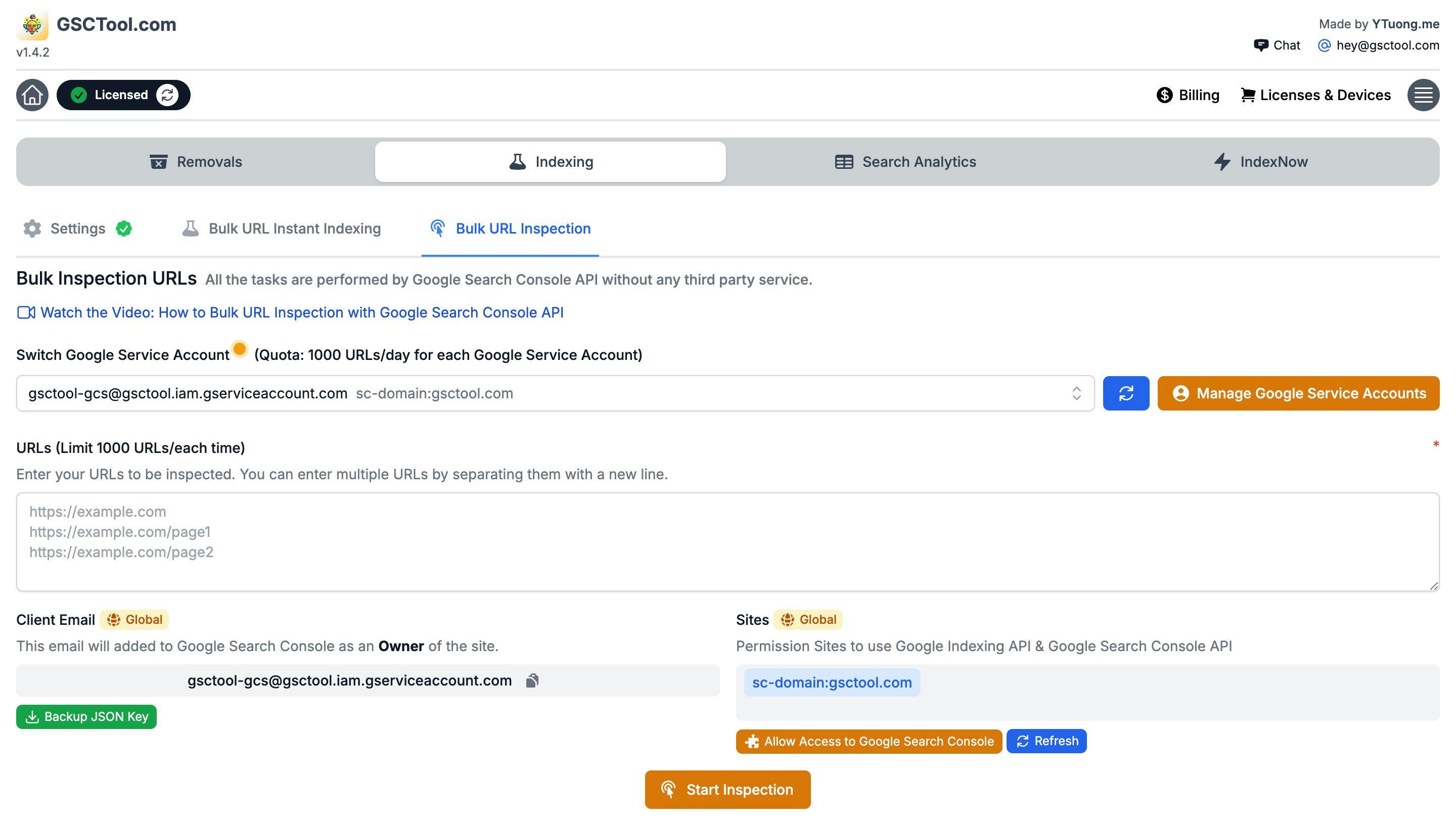
What the URL Inspection tool tells you
The URL Inspection tool answers the question every audit starts with: is this page actually in Google, and if not, why not? For a single URL, Search Console gives you the answer in a few seconds. For a sitemap with 4,000 URLs, that same answer costs a week of clicking.
GSCTool asks the same question through the Search Console API, for a whole list at once, and gives you the answers back as a table you can sort and export.
- Coverage state
- "Submitted and indexed", "Crawled — currently not indexed", "Discovered — currently not indexed", "Duplicate without user-selected canonical" — the phrase that tells you what to fix.
- Google-selected canonical
- The URL Google actually indexed. When it differs from your declared canonical, you have found a consolidation problem.
- Last crawl date
- When Googlebot last fetched the page — the difference between "Google has not seen my fix" and "Google saw it and disagreed".
- Robots and fetch state
- Whether crawling was allowed and whether the fetch succeeded, so a blocked or failing URL stops being a mystery.
The jobs this is for
Bulk inspection is the fastest way to turn "we think indexing is fine" into a number.
- Indexation rate of a sitemap
- Feed in every URL from your sitemap and count how many are genuinely indexed. That percentage is the single most useful health metric a site has.
- After a migration
- Check the new URLs are indexed and the old ones have been dropped, instead of waiting a month for the Pages report to settle.
- Before and after a fix
- Inspect a set of URLs, deploy the change, inspect again, and show the difference — with dates, not vibes.
- Thin or duplicate content triage
- "Crawled — currently not indexed" across a whole content group is a quality signal you can act on.
- Canonical conflicts
- Find the pages where Google picked a different canonical than you declared, at scale rather than one at a time.
How GSCTool runs it
Inspection runs against the Search Console API with your own Google Cloud service account, which is what makes it a bulk operation rather than a browser macro. You set the service account up once, and the extension reuses it for every property you own.
- Up to 1,000 URLs a day
- That is the daily volume the tool is built around, so a mid-sized sitemap is a one-day job and a large one is a scheduled task.
- Your credentials, your data
- The requests go from your browser to Google with your key. No third-party service sits in the middle holding a copy of your index status.
- Set up once, inspect forever
- The JSON key is added once. After that, inspection is paste-and-go for every property on the account.
- CSV export
- Every result exports, so the table lands in a spreadsheet, a client report or a diff against last month.
Inspection only works on properties you have verified in Search Console. There is no way to inspect a competitor’s URLs — that restriction is Google’s, and any tool claiming otherwise is guessing from public search results.
How to inspect a list of URLs in bulk
One-time setup for the API key, then any list of URLs from a property you own can be checked in a single run.
Install GSCTool and open Search Console
Add the extension from the Chrome Web Store and sign in to the Search Console property whose URLs you want to check.
Create a Google Cloud service account
In Google Cloud, create a project, enable the Search Console API, create a service account and download its JSON key. The docs walk through every screen.
Give the service account access to the property
In Search Console, add the service-account email as a user on the property. Without that, Google will refuse the inspection request.
Load the JSON key into the extension
Paste or upload the key once in GSCTool’s settings. It stays in your browser and is reused for later runs.
Paste or import the URLs
Drop in your sitemap URLs, a crawl export, or the list of pages you just changed — one URL per row.
Run the inspection and read the table
The extension queries each URL and fills in coverage state, canonical, last crawl and robots state. Sort by coverage state to see the problem groups immediately.
Export to CSV and act on the groups
Export the results, then treat each coverage state as a work item: not indexed and thin, canonicalised away, blocked, or simply never crawled.
Bulk URL Inspection: frequently asked questions
Something not covered here? Email [email protected].
How many URLs can I inspect in a day?
GSCTool is built around a limit of 1,000 URLs a day, which is the practical ceiling for the Search Console URL Inspection API on a property. Larger sites split the sitemap across several days or prioritise the templates that matter.
Do I need a Google Cloud project for bulk URL inspection?
Yes. Bulk inspection uses the Search Console API, which requires a service account and a JSON key from a Google Cloud project, plus that service account added as a user on the property. It is a one-time setup and the documentation covers each screen.
Is bulk inspection the same as requesting indexing?
No. Inspection reads the current status of a URL. Requesting indexing asks Google to crawl it. They are different jobs and different quotas — bulk submission is handled by the indexing feature.
Can I inspect URLs on a site I do not own?
No. Google only returns inspection data for properties you have verified in Search Console. Any tool that claims to inspect a competitor is inferring from public search results, not from Google’s index data.
What does “Crawled — currently not indexed” mean?
Google fetched the page and decided not to index it. It is almost always a quality or duplication judgement rather than a technical error, so the fix is usually the content and the internal links pointing at it — not the robots file.
Why does Google show a different canonical than the one I set?
Your canonical tag is a hint, not an instruction. When Google picks a different URL, it has decided another page is the better representative — usually because the pages are near-duplicates or the internal links and sitemap disagree with the tag. Bulk inspection is how you find every page where that happened.
Can I export the inspection results?
Yes, every run exports to CSV, including coverage state, canonical, crawl date and robots state, so results can be diffed between runs.
The rest of the toolkit
Bulk URL Removal
Remove hundreds or thousands of URLs from Google Search Console and block them in Bing Webmaster Tools from one CSV.
Bulk Indexing
Submit URLs straight to the Google Indexing API, and to Bing, Yandex, Naver and Seznam through IndexNow.
Export Search Console Data
Break the 1,000-row limit and export every query, page, country and device row from the Search Console API.